
Suddenly offline
It worked before and does not now. Power cycle, read the light, check the cable, check the sky.
Overview
Work down this page in order. Each step either fixes it or tells you which component to suspect.
This guidance assumes the Starlink router. It does not apply as written if you are running a third-party router.
1. Check the app for alerts
Connect to the Starlink WiFi and open the app. If the app shows a cloud icon next to the network name, tap the name and choose Local to talk to the router directly.
Alerts name the fault. See App alerts.
If you cannot connect to the Starlink WiFi at all, skip to the power cycle.
2. Power cycle the router
- Disconnect both ends of the power cable.
- Remove power from the power supply.
- Leave everything disconnected for at least 10 seconds.
- Reconnect everything.
- Watch the app.
3. Read the light
On a Starlink Mini, read the light on the dish itself.
Light is on, still broken. Factory reset the router. If that does not fix it, open a support ticket; the router has probably failed. See Maintenance.
Light is off. Try a different outlet after a power cycle. If nothing changes, open a support ticket; the power supply or the router has failed.
Full tables for every device: Status lights.
4. Check cables and connections
Skip this section on a Starlink Mini.
- Unplug the Starlink cable from the power outlet, inspect it while it is unplugged, then plug it back in.
- Look for visible damage, kinks, weather exposure and bent pins.
- Check any ethernet adapter or extension too.
- Try a different port if one is available.
Use official Starlink cables only. Third-party equipment voids the warranty and causes exactly this class of fault. See Cables.
5. Check the installation
- Run Check for Obstructions in the app and compare it against what you remember.
- Look for new growth, new construction or debris in the field of view.
- Clear snow buildup gently, if it is safe to do so.
- If the dish was recently moved, confirm it is still well placed and properly mounted.
New obstructions, storms and relocation are the usual causes of a system that worked for months and then stopped.
What each status message means
App says “Disconnected, connect to your Starlink WiFi”
You are not connected to the Starlink router.
- Check the router’s LED is lit. If not, reseat every cable and try another power source.
- Make sure you joined the network from the Starlink router. Third-party networking gear blocks the app from reaching Starlink hardware.
- Disable any VPN on your device.
Still nothing? Factory reset the router and join STARLINK when it reappears.
App says “Booting”
The dish is rebooting or finishing initialisation.
Power cycle and wait at least 20 minutes while it initialises and acquires its position. It must be outside with a good view of the sky. If it stays on Booting, submit a ticket from the app.
App says “Searching”
The dish is looking for satellites.
- On a stationary plan, confirm you are actually at the service address on your account.
- Power cycle and wait at least 30 minutes. It may be downloading an update.
If it stays on Searching, submit a ticket from the app.
Starlink Mini WiFi
The Mini’s integrated router is designed for compact areas. Used as the only WiFi in a house, slow speeds and thin coverage are expected behaviour rather than a fault.
Diagnose it
Run an Advanced Speed Test in the app (Speed Test → Advanced), both inside the house and outside next to the dish, and screenshot each result.
If device-to-router speeds are much lower than router-to-internet speeds, your WiFi is the bottleneck, not the satellite link, and the steps below are what will help.
Improve it
Place the Mini centrally relative to where people actually use the internet. Coverage is best underneath and behind the unit. Expect at most 112 m² (1,200 ft²) from a centrally roof-mounted Mini in a single-storey house. Metal roofs and concrete or brick walls cut that down hard.
Split the bands. Starlink app → Settings → tap the network name → Split 2.4/5 GHz networks. This helps devices that cannot use 5 GHz. As a rule, 5 GHz is better close to the Mini and 2.4 GHz better further away in uncongested areas.
Add a router. If the building is large or built out of the wrong materials, hardwire or mesh in another router.
Hardwire a router to the Mini
-
Remove the Starlink plug.
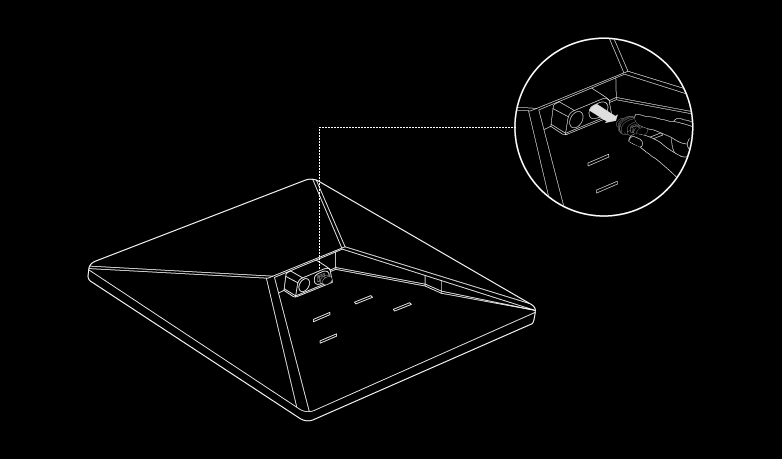
-
Plug the Mini Starlink Cable, or your own ethernet cable, into the ethernet port and run it to a Router 3 or third-party hardware.
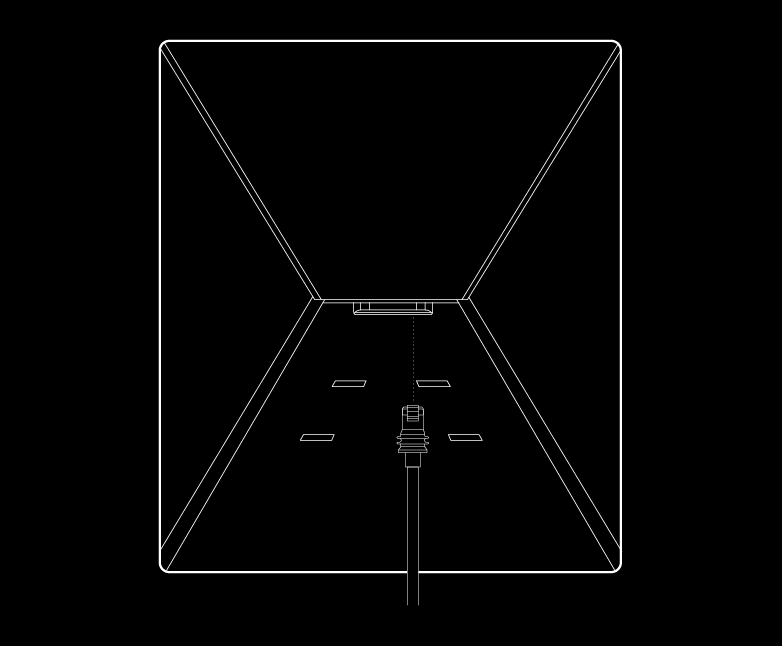
Use the Mini Starlink Cable if you care about water ingress. The Mini is no longer IP67 rated with a third-party RJ45 cable.
-
For a third-party router, put the integrated WiFi into bypass mode from the app. A manual factory reset is the only way out of bypass mode.
To mesh a Router 3 or Gen 2 wirelessly instead, see Mesh.
Mini will not come online at all
-
Open the app and check for alerts, outages and obstructions.
-
Check the status light on the back.

LED Meaning Slow blink Powered on No light No power Fast blink Resetting, for the 3 seconds you hold the button -
Reseat everything and look for damage to hardware and cables.
-
Power cycle by unplugging and plugging back in.
-
Factory reset. Press the reset icon on the back firmly until it clicks and hold 3 seconds. The LED blinks fast then goes out. Your network name and password are wiped, so look for the
Starlinknetwork afterwards.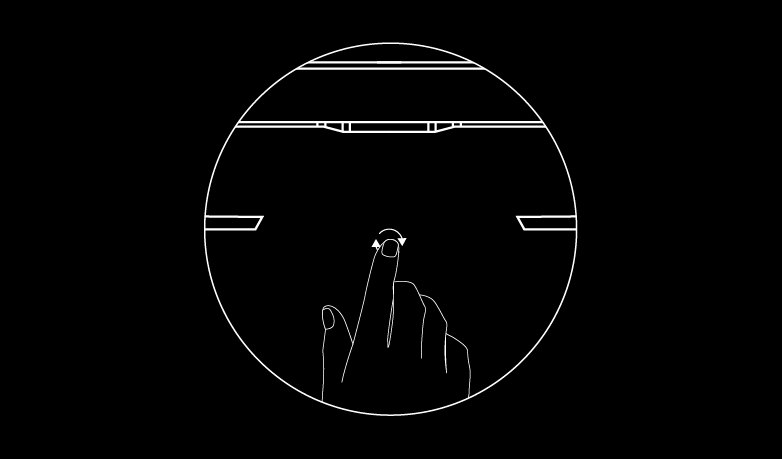
-
If none of that works, contact support through the app.