
Status lights
Every LED on the dish, the routers and the power supply, and what to do about each one.
Overview
Before working through any table below, do these three things, because they resolve a large share of cases on their own:
- Power cycle the router for two minutes.
- Check the app for alerts.
- Connect to
STARLINKWiFi and run a speed test.
Use official Starlink cables and power supplies throughout. Third-party parts are a common cause of the faults these lights report.
Standard 4 and Standard 4 X
Status appears on the router. See the Router 3 and Router Mini table below.
The dish itself has no user-facing light on these kits, so a healthy dish looks like nothing at all.
| Router light | Meaning | What to do |
|---|---|---|
| Off | No power | Unplug the power supply for 10 seconds. Reseat every cable. Try a different outlet. Check the cable for damage |
| Blinking white | Trying to connect | Look for the STARLINK network. If it appears, set up WiFi in the app. If not, factory reset and wait 5 minutes |
| Red | No internet | Listen for the dish hum. Unplug and replug every cable. Power cycle and wait 2 minutes |
| Solid white | Connected | Join the WiFi and run a speed test. If it is slow or dead, factory reset the router |
| Violet | Bypass mode | Turn bypass off in the app, disconnect extra equipment, factory reset |
Starlink Mini
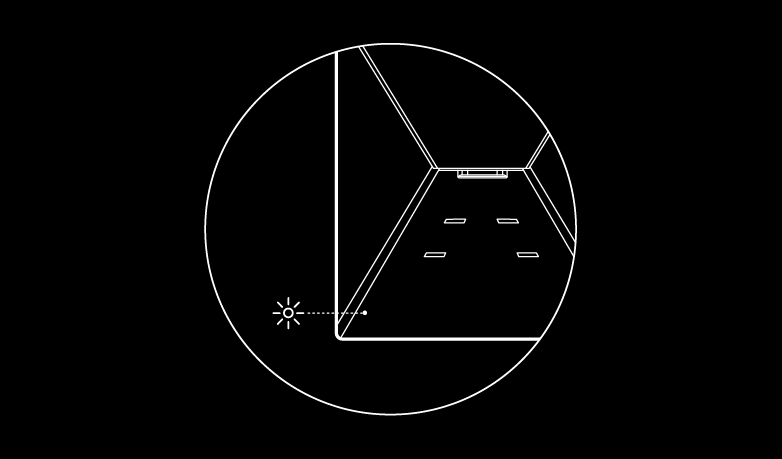
| Light | Meaning | What to do |
|---|---|---|
| Off | No power | Unplug the power supply for 10 seconds. Reseat cables. Try a different outlet. Check for cable damage |
| Solid blue, about 14 seconds | Starting up, normal | Wait 20 seconds. Power cycle if it stays there |
| Fast blinking blue | Resetting, normal | Wait 5 minutes, then look for STARLINK and set up in the app |
| Slow blinking blue | Working and connected | Join the WiFi and test speed. Factory reset from the app if there is no WiFi. Confirm a clear sky view and that it is not moving |
| White, red or yellow | Error or glitch | Power cycle for 2 minutes. Test stationary on wall power with clear sky. Check the app for alerts |
Router 3 and Router Mini
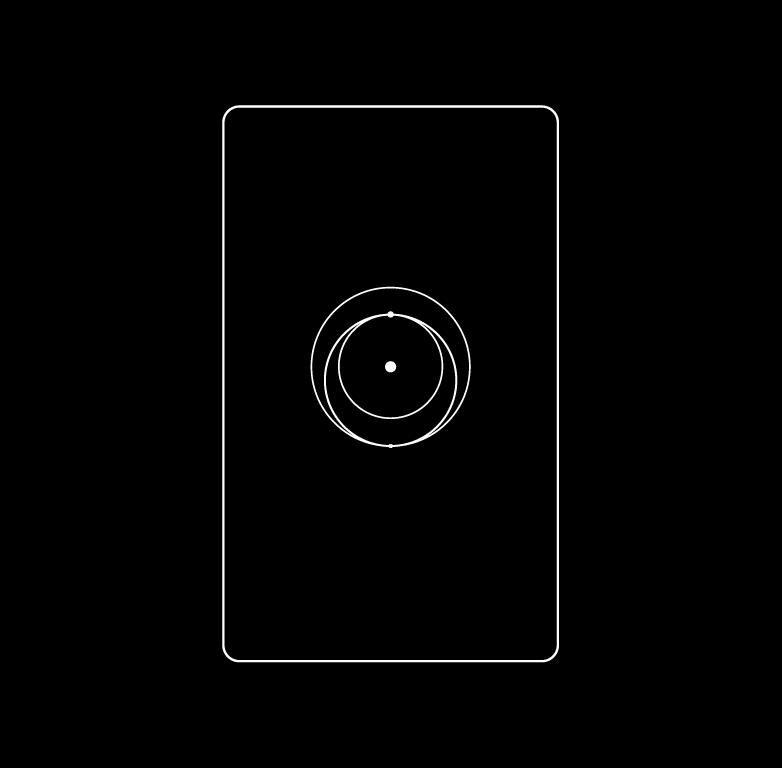
| Light | Meaning | What to do |
|---|---|---|
| Flashing or slowly pulsing white | Trying to connect. Turns red after 20 minutes | Set up WiFi. Power cycle if needed |
| Solid white | Connected. Turns off after 1 hour, which is normal | Test speed in the app |
| Off | No power, or a connected router more than an hour on | Unplug and replug for 10 seconds. Try a different outlet |
| Red | No internet | Reseat cables, listen for the dish hum, power cycle |
| Violet | Bypass mode. Turns off after 1 hour | Turn it off under Advanced in the app. Exiting requires a factory reset |
Do not put the Router Mini outside. It is an indoor unit and outdoor placement causes connectivity problems.
Standard 4 power supply
The Standard 4 PSU has two status lights, one above each port. One reports the PSU-to-dish link, the other the PSU-to-router link.
| Light | Meaning |
|---|---|
| Breathing white | Port ready for a SpaceX product |
| Solid white | Both ports delivering power to SpaceX products |
| One off, one white | One port delivering power, the other not. Normal with a non-SpaceX device on one port |
| Both off | No power to the router |
| Blinking orange, 1 blink | Overcurrent |
| Blinking orange, 2 blinks | Voltage too low |
| Blinking orange, 3 blinks | Voltage too high |
| Solid orange | Hardware issue |
| Blinking red | Port shut off after a high-power event such as a short circuit |
| Solid red | Power supply is too hot |
For any power supply fault: power cycle for 20 seconds, reseat cables, and check for damage, kinks and water. Overheating means it needs ventilation and shade.
Universal power supply
| Light | Meaning | What to do |
|---|---|---|
| Breathing white | Powered, nothing connected | Plug cables in firmly |
| Solid white | Powering a device, normal | Nothing |
| Solid red | Overheating | Unplug, let it cool, move somewhere ventilated and out of the sun |
| Flashing red | Hardware fault | Power cycle, try a different outlet and cables |
| Solid orange | Power fault | Reseat cables, test one device at a time |
Mini car adapter and USB-C cable
| Light | Meaning |
|---|---|
| White blinking, white solid, or no light | Normal |
| Red | Overheating. Unplug and let it cool 5 to 10 minutes, then use it in shade |