
Obstructions
How Starlink routes around trees and rooflines, how to check a location, and what to do when the app says Obstructed.
Overview
Your dish talks to satellites that cross the sky constantly, so anything standing between it and the sky costs you a connection for as long as that satellite is behind the obstacle. The system is built to work around this, and it is good at it, but it cannot invent a path that does not exist.
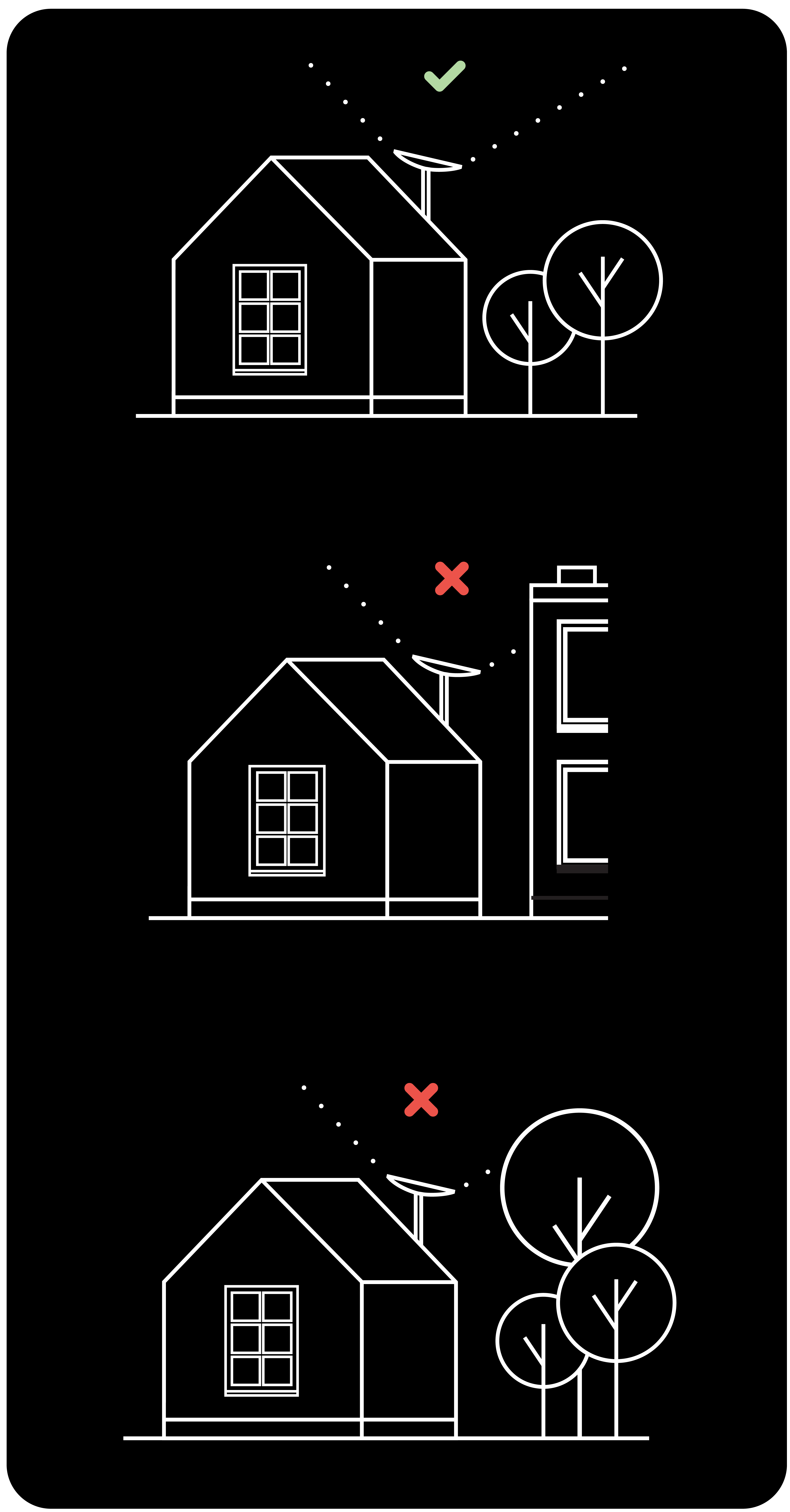
How Starlink handles obstructions
A terminal in a well-served area has tens of satellites in view at once. It switches between them many times a minute, and you never notice. Two things drive those switches:
- Proactively, from the obstruction map the dish builds as it works. It learns where the branches are and stops choosing satellites behind them.
- Reactively, in tens to hundreds of milliseconds, for anything it could not predict. This is what keeps an in-motion terminal connected when it drives past a tree line.
The dish measures its own uptime at 10 Hz and reports any outage of 100 ms or longer in the app, so the numbers you see are not smoothed.
Performance improves over the first days and then keeps improving. The map gets more accurate, and every satellite launch adds another path around the obstacle.
How to check a location
- Stand where you want to put the dish.
- In the Starlink app, choose Check for Obstructions.
- Follow the guided scan with the camera. Hold the phone at the height and angle the dish will actually sit at, because a scan from waist height tells you about a view the dish will never have.
- Repeat in a few candidate spots and compare.
The tool shows what is in the field of view and estimates how the location will feel for different activities. If you are in a heavily wooded or built-up area, run this before ordering.
Reading the obstruction map
The clear band across the map is not a problem. That is the geostationary exclusion zone. Starlink does not transmit or receive through it, so it never fills in, even with perfectly clear sky in that direction.
The map fills in within about a day. The dish maps most obstructions in less than 24 hours and keeps refining after that.
How to fix obstructions
In rough order of what actually works:
- Move the dish. Use the obstruction tool to find a clear spot on the property, then relocate. Unplug and reboot after moving it.
- Remove the obstruction, if that means one branch and you can reach it safely.
- Go higher. Mounts and longer cables from the Starlink shop, or a pole or tower. See Mounts.
If you cannot install the kit or clear the obstruction safely, stop and get a professional. See Installers.
Troubleshooting
A new obstruction alert after months of nothing. Usually something changed rather than something broke. Spring leaves filling in, debris or soil settling on the dish, or snow left over from a blizzard that outpaced the melt cycle. The banner often clears on its own as the map relearns the area.
The app says “Obstructed” and you get frequent interruptions. Obstructions have measurably hurt performance recently. This is common right after the obstruction map is cleared, while the dish relearns. Less often it means material has built up on the dish or it has fallen over, so look at it. If the interruptions only bite during gaming or calls, you need to change something: move the dish, raise it, or clear the view.