
Starlink Mini setup
Cable, place, align and connect the portable Mini, which has its router built in.
Overview
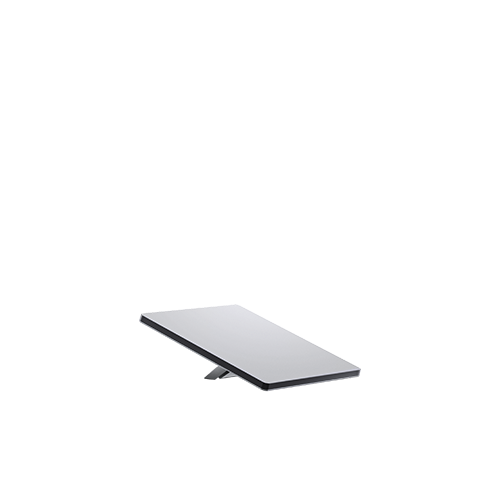
The Starlink Mini has its WiFi router built into the dish, so there is no separate router box. One cable runs from the dish to a power supply and that is the whole installation.
Before you start
What is in the box:
- Starlink Mini with integrated WiFi
- Kickstand
- Mini pipe adapter and flat mount
- 15 m DC power cable
- Power supply
- Starlink plug
Starlink has made a cosmetic change to the Mini’s shell to make it more scratch-resistant. It does not change how the unit works.
Steps
1. Install the app
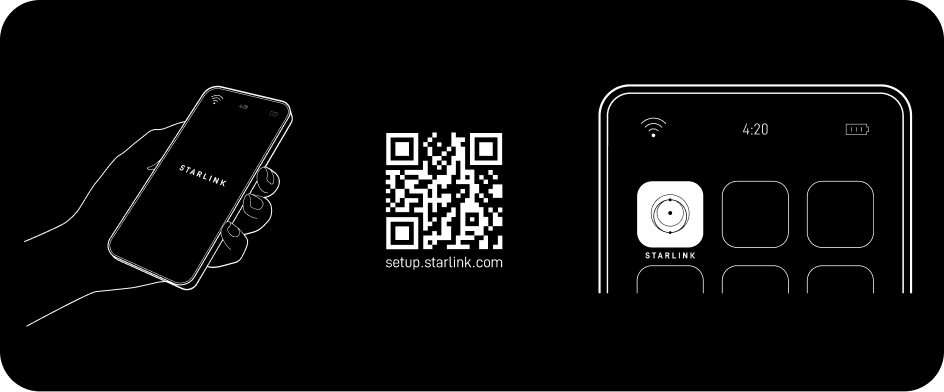
Install the Starlink app and scan the QR code on the packaging to walk through the guided install.
2. Find a clear view of the sky
The Mini needs sky in every direction to hand off between satellites. A branch or a roofline in the field of view causes repeated short interruptions rather than an outright failure.
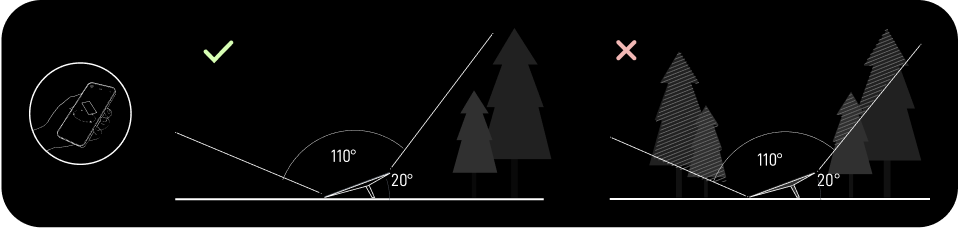
Run the obstruction tool in the app before you settle on a spot.
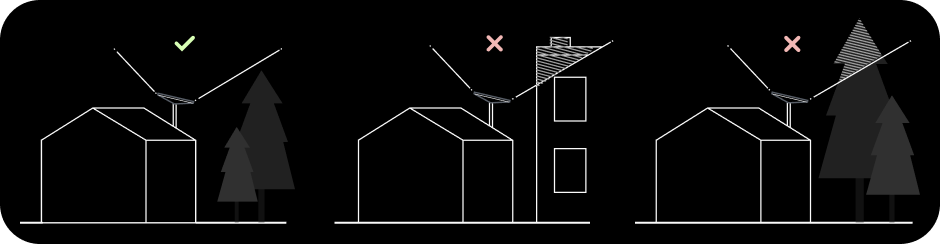
If nothing at ground level works, mount it higher. The pipe adapter and flat mount are already in the box.
3. Plug it in
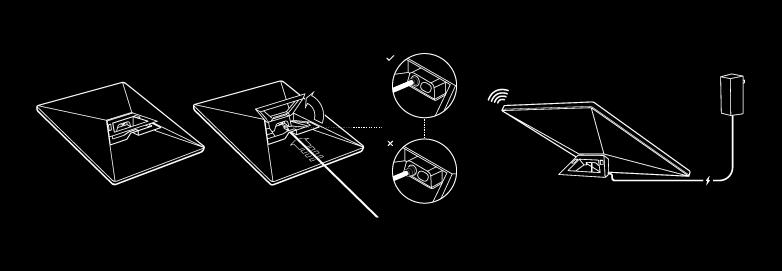
Lift the kickstand and push the cable into the Mini until the plug face sits flush with the surface. Run the other end to the power supply and plug that into the wall.
4. Connect to WiFi
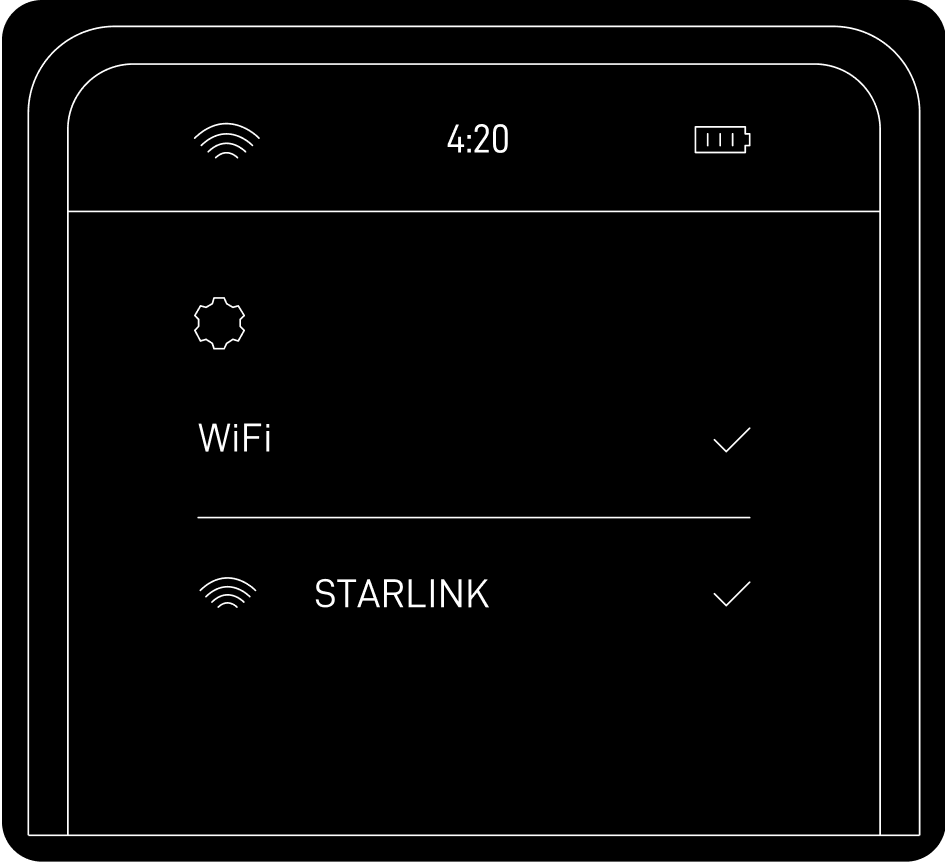
Join the STARLINK network from your device’s WiFi settings, then set your own
name and password in Starlink app → Settings → Router. Until you do, the
network is open.
5. Align it
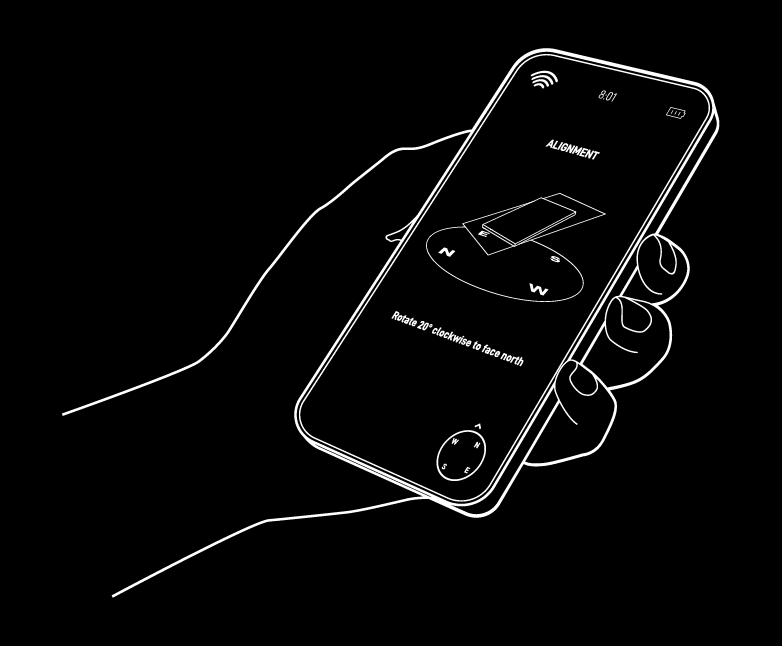
Tilt the Mini on its kickstand, or fit it to the pipe adapter, and let the app tell you which way to turn. Inside 5° the app stays quiet, which means you are aligned.
Reference
The status LED is on the back.
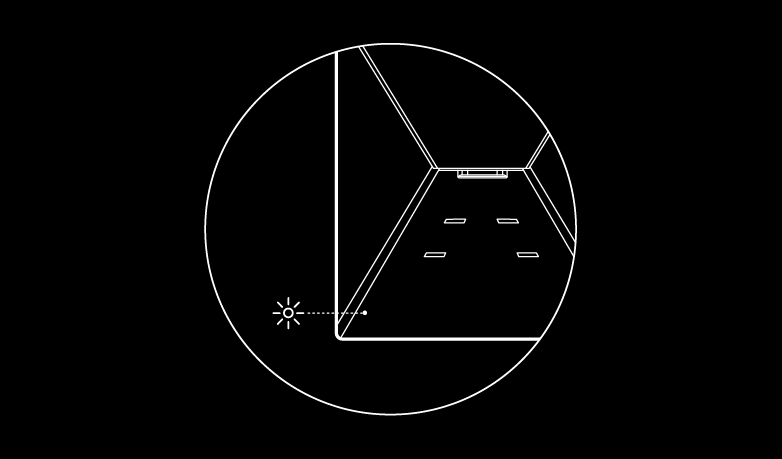
| LED | What it means |
|---|---|
| Slow blink | Powered on |
| No light | No power |
| Fast blink | Reset in progress, for the 3 seconds you hold the button |
Installing more than one Mini in one place. Keep at least 3 m between mount centres. A third-party router can bond them into one network for load balancing and failover.
Troubleshooting
Cannot get online. Work down this list.
- Open the app and check for alerts, outages and obstructions.
- Check the status LED on the back.
- Reseat every plug and look for damaged cable.
- Power cycle by unplugging and plugging back in.
- Factory reset. Press the reset icon on the back firmly until it clicks, hold
3 seconds, and the LED blinks fast then goes out. Your network name and
password are wiped, so look for the
Starlinknetwork again afterwards.
Unstable on a 12 V supply. The Mini accepts 12 to 48 V. At 12 V the cable matters: shorten it, use thicker gauge, or feed it at a higher voltage. The easy fix is the USB-C cable with a 100 W supply, or the car adapter.