
App tools
Alignment, speed tests, the event log, sleep schedule and remote monitoring.
Overview
The app is where the diagnostics live. Four tools cover most of what you need: alignment, speed test, event log and sleep schedule.
Alignment tool
Applies to the Standard 4, Standard 4 X and Starlink Mini, none of which move themselves. The dish has to point at the part of the sky where it spends the most time talking to satellites.
Once the dish is online, tap Alignment in the app and follow the prompts.
Standard 4 and Standard 4 X
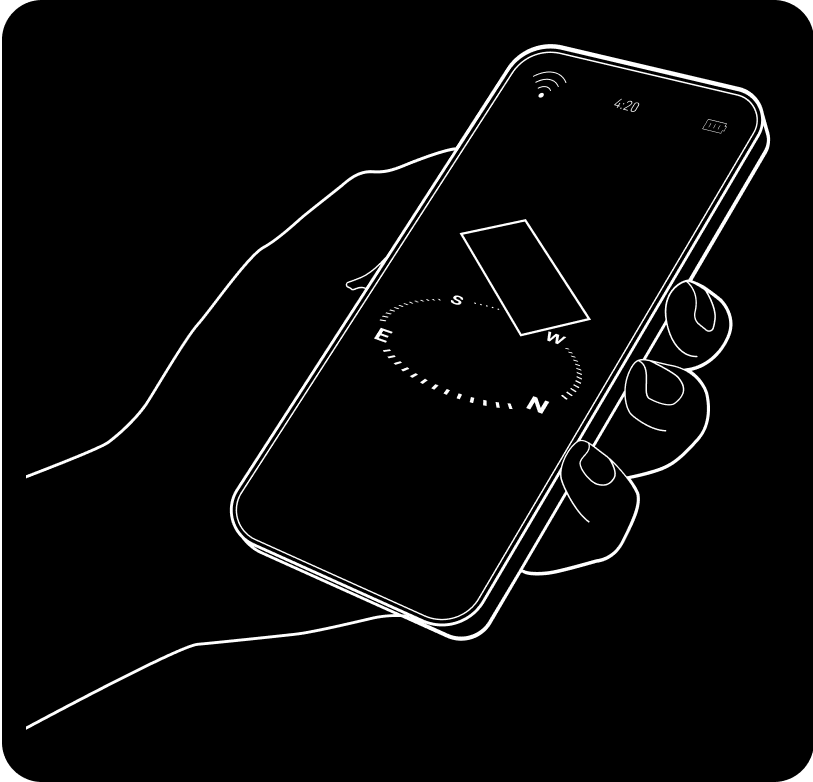
Starlink Mini
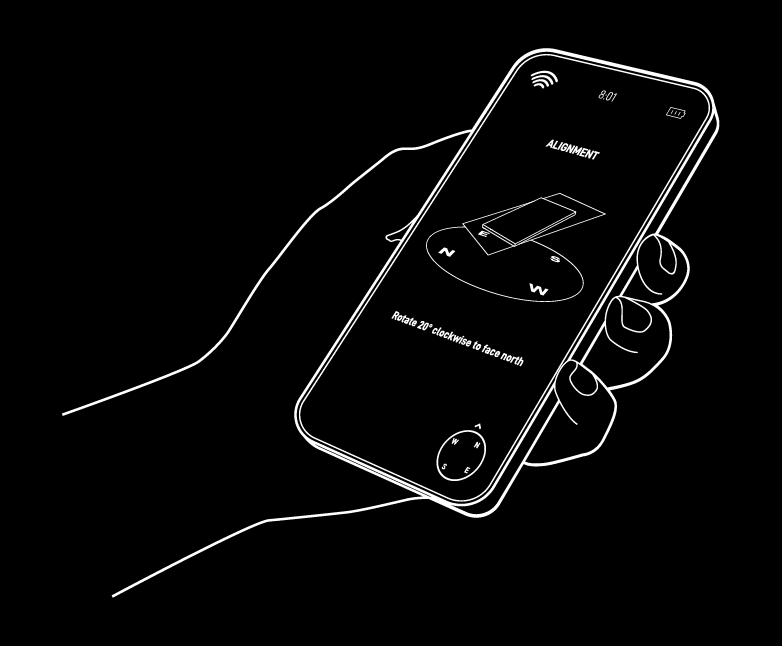
The app raises Starlink Misaligned when you are off by 5° or more, and says nothing below that. The tool is always reachable from the bottom of the home screen, so you can check even without an alert.
Speed test
By default the app measures router to internet. That tells you what the service is delivering and how much bandwidth is available to the whole network, and it deliberately ignores your device’s own WiFi quality.
- Open the app.
- Tap Speed Test.
- Tap Start.
| Number | What it affects |
|---|---|
| Download | Buffering and file download speed |
| Upload | Video uploads and file transfers out |
| Latency | Lag in games and video calls |
Results move between runs as demand changes and different satellites come into view, so one bad result is not a diagnosis.
Advanced tests
Tap Speed Test → Advanced (the down arrow at the bottom), then pick a mode.
- Device → Internet. End-to-end, including your WiFi. This is what other speed test sites measure.
- Device → Router. Just the link between your device and the router.
How to read the pair. If Device → Router is much lower than the default router → internet test, your WiFi is the bottleneck, not the satellite link. That changes the fix entirely: see Improving WiFi.
Event log
The event log shows what has been happening on your network, not just when it was fully offline. It replaces the old Outage Log and adds:
- Router-related outages, such as the router being powered off or disconnected.
- Non-outage events that degrade quality without taking you offline, such as elevated packet loss or device reboots.
This is why it is useful. A spike in packet loss will not interrupt browsing but will make a video call stutter, and the log is what connects “my call stuttered” to a cause. Starlink uses the same data internally.
Expect more event types over time. Most entries are minor.
Sleep schedule
Saves power when nobody is using the connection. Anyone on the local Starlink WiFi can change it.
- Open the app and go to Settings → Starlink → Sleep Schedule.
- Turn on Enable sleep schedule.
- Drag the handles on the clock to set the sleep window.
- Save.
To turn it off, return to the same screen, switch it off and save.
While asleep the dish provides no internet, does not melt snow, and cannot be managed remotely. The app uses UTC by default, which is the detail that catches people out.
In snow country this has a real cost: accumulated snow can take several hours to melt after the dish wakes, and you may have to clear it by hand to get service back.
Remote monitoring
You can check performance and statistics while away from the service location.
- Open the Starlink app.
- If your account has several Starlinks, use Switch Starlink to pick the one you want.