
Updates
The panel's general settings in the header menu, and checking and installing updates for Nasnet Panel and RouterOS.
Overview
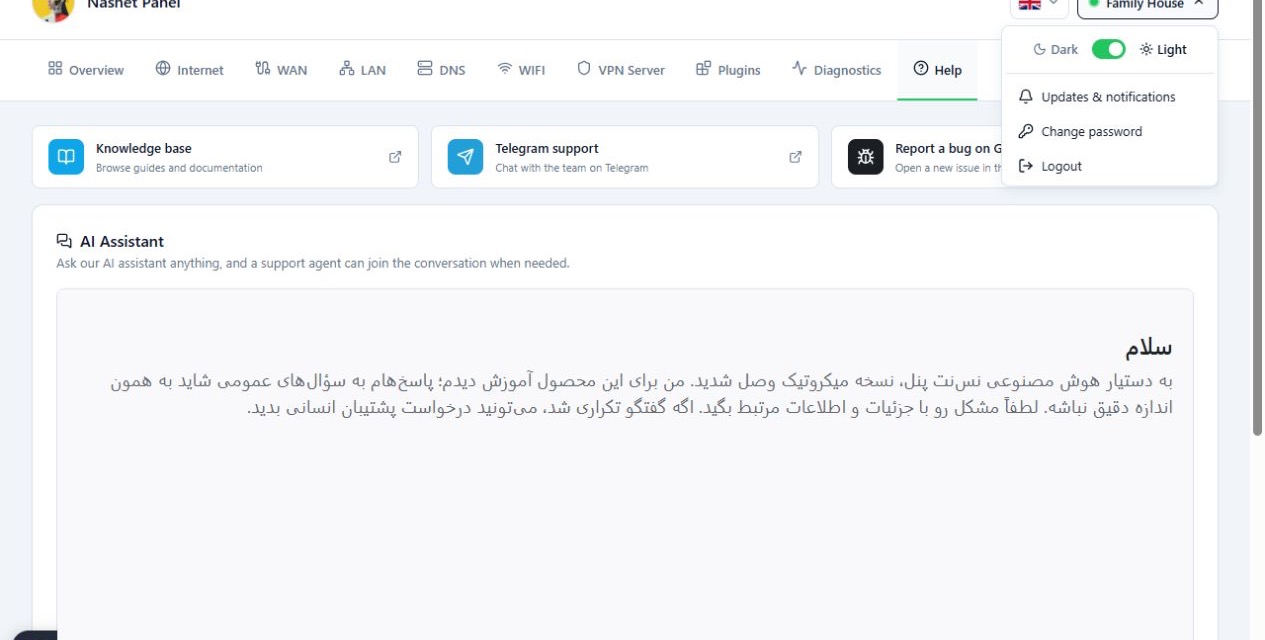
The menu at the top of the page, next to the router name, holds the panel’s general options. From it you can change how the panel looks, change your password, log out of the current connection, and open the Updates page.
The Updates page shows the status of Nasnet Panel and RouterOS separately. Each part shows the version you are on and the version available, and the install button appears only when there is something newer.
Before you start
- Connect to a router first. Without an active connection, the Updates page shows “Connect to a router first to check for app updates.”
- Check the target router’s name and the versions.
- Back up the router’s configuration.
- Read the Release notes or the notes for that version.
- Update at a time when a short loss of connection or a router reboot will not cause problems.
Steps
Updating Nasnet Panel
- Open the menu at the top of the page and choose Updates & notifications.
- Check the App update section. It shows the current version and the version available.
- If a newer version is available, click Update app and confirm.
- Wait for the update to finish. At the end, the panel restarts on its own.
Updating RouterOS
- On the same page, check the RouterOS firmware section.
- If a newer version is available, click Update firmware.
- Read the confirmation message and confirm. The router reboots once the new package is installed.
Do not cut the router’s power or the connection until the update has finished.
Changing the theme, password and language
- Open the menu at the top of the page, next to the router name.
- To change how the panel looks, choose Light or Dark.
- To change the password of the RouterOS user you are connected with, choose Change password.
- To leave the current connection and go back to the router list, choose Logout.
To change the language, use the language option at the top of the page.
Reference
General settings menu
| Option | What it does |
|---|---|
| Light and Dark | Switch the panel between light and dark appearance. |
| Change password | Change the password of the RouterOS user you are connected with. |
| Updates & notifications | Check for panel and RouterOS updates. |
| Logout | Leave the current connection and go back to the router list. |
Updates page
| Section | What it does |
|---|---|
| App update | Current and available Nasnet Panel version. Install with Update app. |
| RouterOS firmware | The router’s RouterOS version status. Install with Update firmware. |
Troubleshooting
“Connect to a router first to check for app updates.” No router is connected. Open a router, then come back to this page.
The install button does not appear. You are already on the latest version, and the status reads up to date.
The panel is unreachable during an update. It is restarting. Wait a moment and reload the page.