
WAN
Change the Foreign / Starlink and Domestic internet links, and manage the outbound VPNs that hide the Starlink IP.
Overview
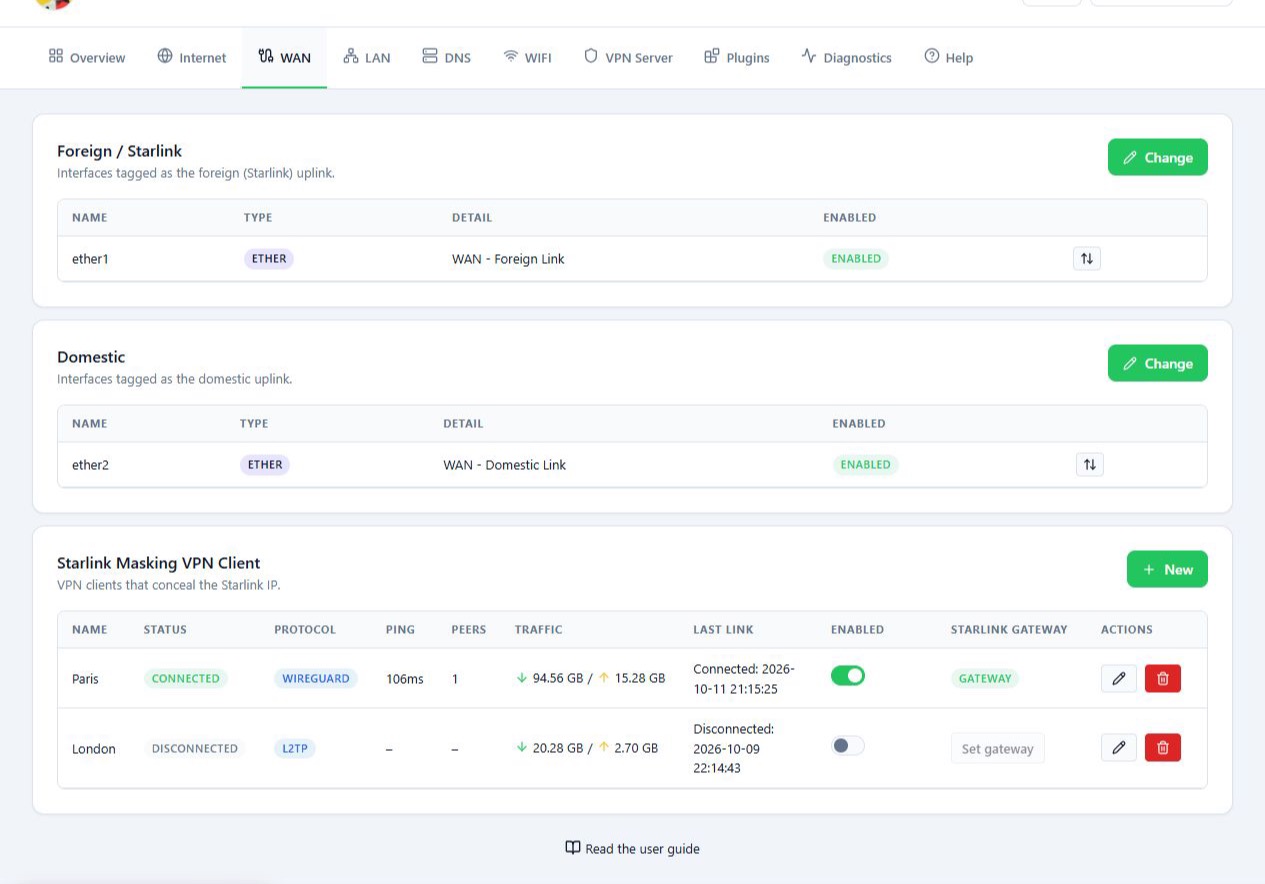
On the WAN tab you manage the internet links and the VPNs the MikroTik connects to. You can change the links you picked in the wizard from here, without running the wizard again.
The page has three sections:
- Foreign / Starlink: the foreign link, usually Starlink.
- Domestic: the domestic internet link.
- Starlink Masking VPN Client: the outbound VPNs used to hide the Starlink IP.
Before you start
- Changing a WAN link rebuilds the router’s routing, so the connection may drop for a short time.
- An interface can only serve one of the two links at a time.
- To add an outbound VPN, have your WireGuard config file or L2TP login details ready.
Steps
Change the Foreign / Starlink or Domestic link
- Click Change in that section.
- Choose the connection type, for example Ethernet or Wireless.
- Pick the right port or interface.
- For a wireless link, also choose the network and enter its login details.
- Check the details and click Save.
For example, if the WiFi password of your Iranian internet router has changed, enter the new details here.
The port list may also show a button that moves an interface to the Domestic or Foreign group. This changes the interface’s role, so first make sure your choice matches how the cables are really connected.
Add an outbound VPN
- In Starlink Masking VPN Client, click New.
- Choose the connection type. In the current version L2TP and WireGuard are available. Greyed-out options cannot be used from this form yet.
- Give the connection a clear name.
- For L2TP, enter the Connect to address, the username and the password. If the service needs IPsec, turn on Use IPsec and enter its details.
- For WireGuard, in Import existing config mode, load the
.conffile or paste the config into Config text. - If Enabled on creation is shown, check its state, then click Add client.
- Check the connection status in the list.
To edit a connection, use Edit on its row. Delete removes that connection’s config. If the connection is in use, set up an alternative route before you delete it.
Choose the Starlink outbound VPN
If you have defined several VPNs, the selected one carries the GATEWAY badge.
- Find the VPN you want in the list.
- Click Set … as Starlink gateway, or the matching Set gateway option.
- Check the GATEWAY badge and the connection status again.
Reference
| VPN list column | What it shows |
|---|---|
| Name | The connection name. |
| Protocol | WireGuard or L2TP. |
| Status | Whether the connection is Enabled and Connected. |
| Ping | Response time through the connection. |
| Traffic | Data sent and received. |
| Last change | When it last connected or disconnected. |
Troubleshooting
The Set gateway button is greyed out. First check the connection status and that the VPN is enabled. Enabled only means the config is switched on and does not confirm the connection is up. Check that it also shows Connected.
A link you changed does not show up straight away. After each change the page waits a few seconds for RouterOS to finish applying it, then reloads the list.
“Failed to load interfaces” or “Failed to load VPN” appears. The panel could not read the data from the router. Check that the router is reachable and that you are still connected to it.