
WIFI
See the devices connected over WiFi, change each radio's name, password and security, and add virtual networks.
Overview
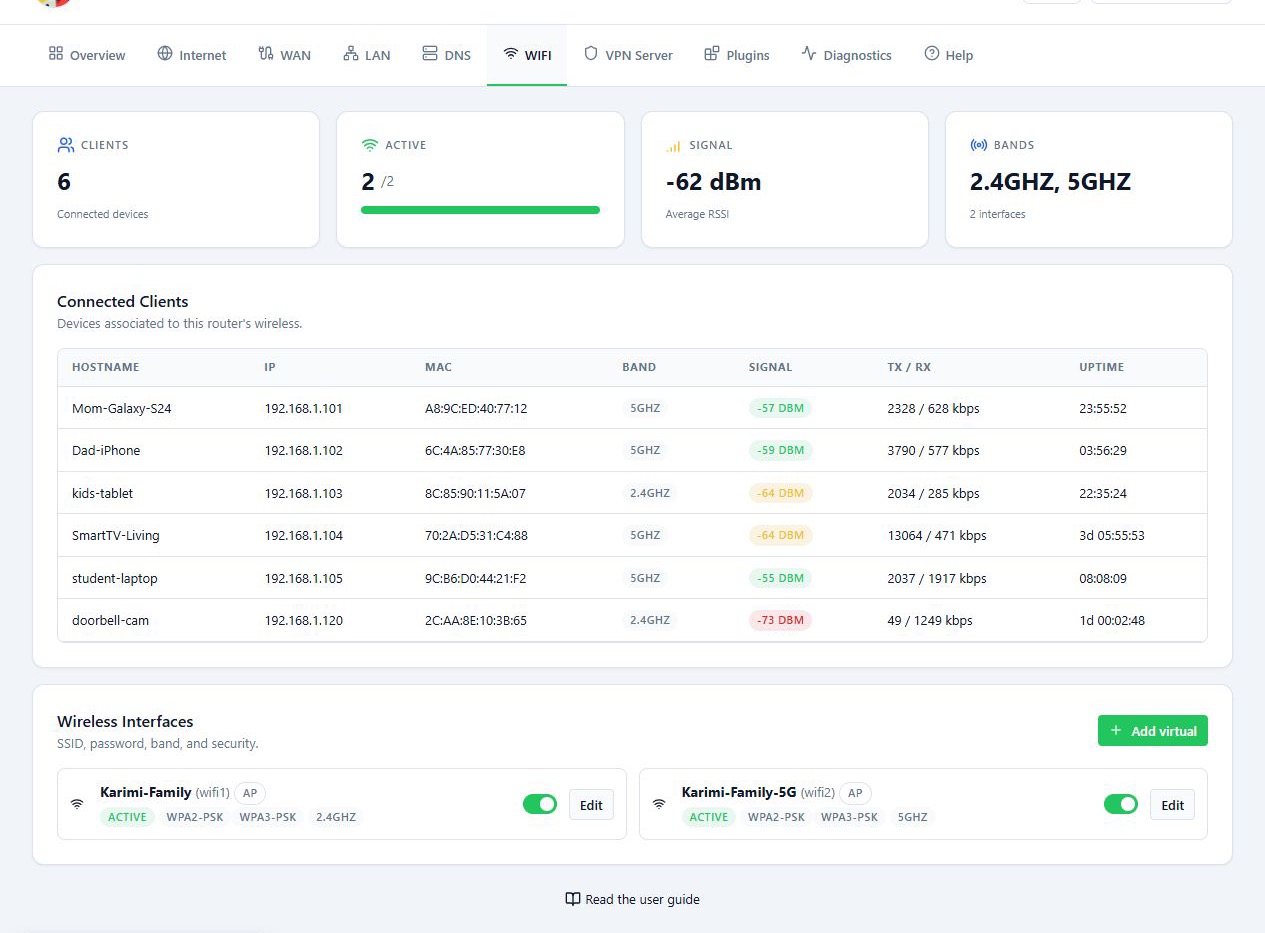
The WIFI tab is where you see the devices connected over WiFi and change the router’s wireless settings. A row of stat cards at the top summarises the radios. Connected Clients lists the devices that are connected, and Wireless Interfaces shows each radio on its own card with an on/off toggle and an edit button.
Before you start
- The router needs wireless hardware. Without it, the page shows
No wireless interfaces found. - If you reach the panel over that same WiFi, changing its settings or turning the radio off can cut your connection. Have the new details and another way back in ready before you save.
- Changing the SSID or password disconnects every device on that radio.
Steps
See connected devices
- Open the WIFI tab.
- Find the device under Connected Clients.
- Check its signal, band and TX / RX traffic.
Devices connected with a cable are not in this list. If nothing is connected over WiFi, the list is empty. To see every address handed out on the network, use DHCP Leases on the LAN tab.
Change the name, password and settings
- Under Wireless Interfaces, find the network’s card and click Edit.
- Change the network name in SSID and its password in Password.
- Check Mode and Security. For the network your devices join, AP mode means the radio is offering WiFi. Switching it to another mode changes what the radio is used for.
- Click Save.
- If you changed the name or password, reconnect your devices with the new details.
To turn a radio on or off, use the toggle on its card.
Add a virtual network
Add virtual creates an extra WiFi network on one of the existing radios.
- Click Add virtual.
- In Master interface, choose the radio to build on.
- In Bridge, choose the group that sets where this network’s traffic goes.
- Enter the network name and password.
- Click Create.
A virtual network shares the master radio’s hardware. It does not add a new physical band. Pick the bridge group that matches the route you want for the devices on it. The groups are explained on the LAN page.
Reference
Connected Clients table
| Column | What it shows |
|---|---|
| Hostname | The device’s name. |
| IP | Its current address. |
| MAC | Its MAC address. |
| Band | The band it is connected on. |
| Signal | Signal strength. |
| TX / RX | Sent and received traffic. |
| Uptime | How long it has been connected. |
Interface edit dialog
| Field | What it does |
|---|---|
| SSID | The network name this radio broadcasts. |
| Password | The password for joining the network. |
| Mode | The radio’s role. AP means it offers WiFi to devices. |
| Security | The security type, such as WPA2-PSK or WPA3-PSK. |
Troubleshooting
No wireless interfaces found. The router has no WiFi radios, or the panel
could not read them.
Connected Clients is empty. No device is connected over WiFi right now. Wired devices never appear here.
The panel dropped after saving. You were probably connected through that radio. Rejoin with the new name and password, or connect with a cable.
A radio used for the WAN link does not work for the local network. If a radio is used as an uplink, check whether your panel version and router model allow it to serve the local network at the same time.