
Applying the configuration
Applying the configuration with Apply on the wizard's last step, temporary access to the router if the connection drops, and fixing apply errors.
Overview
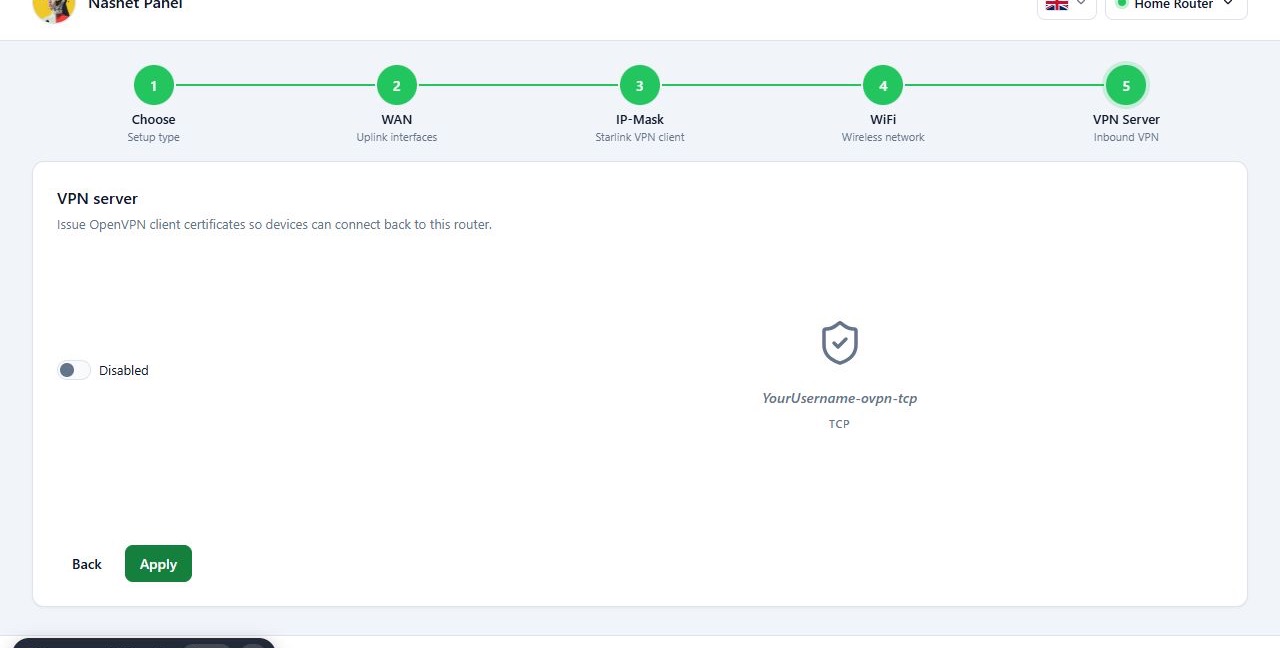
The wizard has no separate review screen. On the last step the main button changes to Apply. Pressing it sends all your settings to the router in one go, and the Applying configuration… dialog shows the progress.
While this runs, the router’s addresses and network settings change, so a brief loss of connection is normal. The panel keeps trying to read the router’s state for up to six minutes.
Before you start
- Check the WAN ports, VPN details and WiFi name and password. Use Back to fix earlier steps.
- Make sure you can reach the router itself, in case you need the temporary access routes.
Steps
- On the last step, press Apply.
- In the Applying configuration… dialog, read the temporary access details. If a management WiFi name and password are shown, write them down or take a screenshot.
- Keep the page open and wait for it to finish. A brief loss of connection while addresses and network settings change is normal.
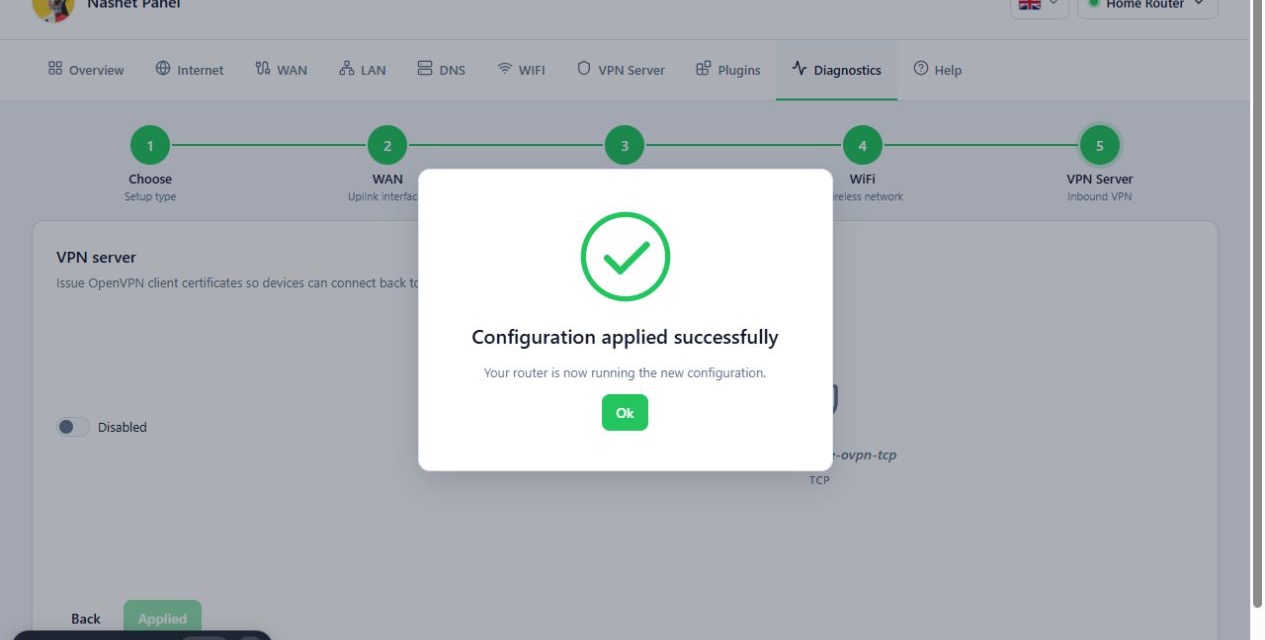
- When Configuration applied successfully appears, press Ok.
- Plug the domestic internet router’s cable into the port you chose in the WAN step.
Once setup is complete you land on the Overview page and the main tabs become available.
Reference
Temporary access if the connection drops
| Route | Address |
|---|---|
| Plug into the last Ethernet port | 192.168.200.1 |
| Join the management WiFi shown in the dialog | 192.168.210.1 |
What your panel version shows takes priority. This access is for temporary recovery and is not meant as a permanent way to manage the network.
Dialog states
| State | What it means | Buttons |
|---|---|---|
| Applying configuration… | The settings are being applied to the router. | none |
| Configuration applied successfully | Applying finished. | Ok |
| Apply failed | Applying or reading the router’s state failed. The reason is shown under the title. | Retry, Ok |
Troubleshooting
The connection dropped while applying. First wait for the panel to try to reconnect. A temporary drop does not necessarily mean the configuration failed. If an error appears, connect to the router through the last Ethernet port or the management WiFi and check its state with WinBox.
Apply failed. Read the reason shown under the title, then press
Retry.
Timed out waiting for the router to finish. The panel waited six minutes
without the router finishing. Reach the router through one of the temporary
access routes and check its state before trying again.
Missing router credentials. Connect to the router again from the router
list.
Check the router’s state before repeating the configuration or resetting the router.