
DNS
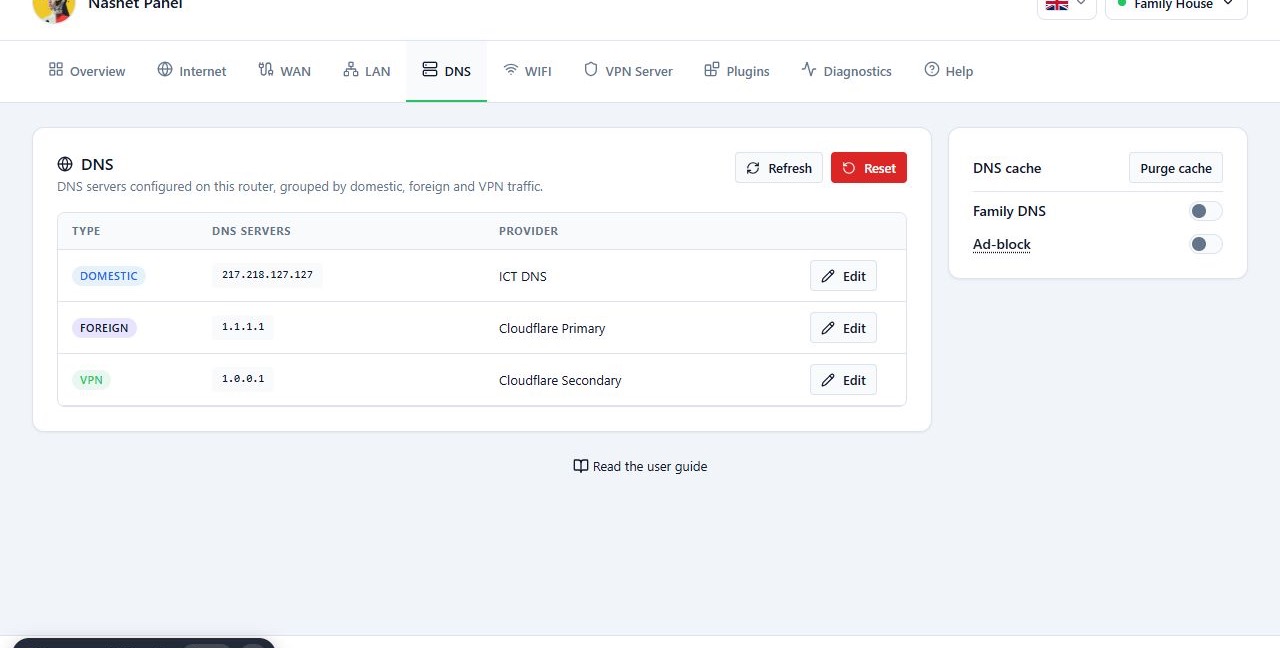
Set the DNS for the Domestic, Foreign and VPN routes, clear the DNS cache, and use the Family DNS and Ad-block filters.
Overview
On the DNS tab you manage the DNS servers for the Domestic, Foreign and VPN routes separately. In the NasNet config, these addresses are also used to check whether each route is reachable.
Before you start
- Any DNS change affects every device that looks up domain names through this router.
Steps
Change a DNS server
- Click Edit on the row you want.
- Pick the new address from the New IP list.
- To use a different address, turn on Enter manually and type the IP.
- Click Change.
- Check the connection status and that websites open.
For the Domestic route, pick a DNS suited to that route. If the panel warns that the address is outside the Iranian IP ranges, check your choice and only continue if you know why you need that address.
Reference
| Option | What it does |
|---|---|
| Refresh | Reloads the displayed data from the router. |
| Purge DNS cache | Clears the cached DNS answers. Can help when you look into domain name problems. It does not change the DNS addresses. |
| Family DNS | Meant to restrict access to some content unsuitable for children. |
| Ad-block | Blocks advertising and tracking domains on the network. It may affect how some sites work. |
| Reset | Resets the DNS settings. This is not the same as Reset and Reconfigure in Diagnostics. |
Family DNS and Ad-block are still experimental. Before using them, check whether your installed version supports them. Before you confirm any reset, read the message and what it will change.
Troubleshooting
The domestic internet works, but the panel shows it as down. Check that the Domestic route’s DNS server is reachable, because the panel uses it to check the route. This is only one of the possible causes.
A site stopped working after turning on Ad-block. Turn the option off and compare how the site behaves.
Domain names still resolve to the old address after a DNS change. Use Purge DNS cache and check again.
“Missing router credentials for this session.” appears. Connect to the router again from the router list.