
Overview
The router's home tab for checking device details, port status, current traffic, resource use and connection status.
Overview
After the initial setup, each tab of the panel is for viewing or changing one part of your network. Start from Overview to check the overall state, then open the matching tab to change a setting. Wherever you see a Read the user guide link, it opens the guide for that page.
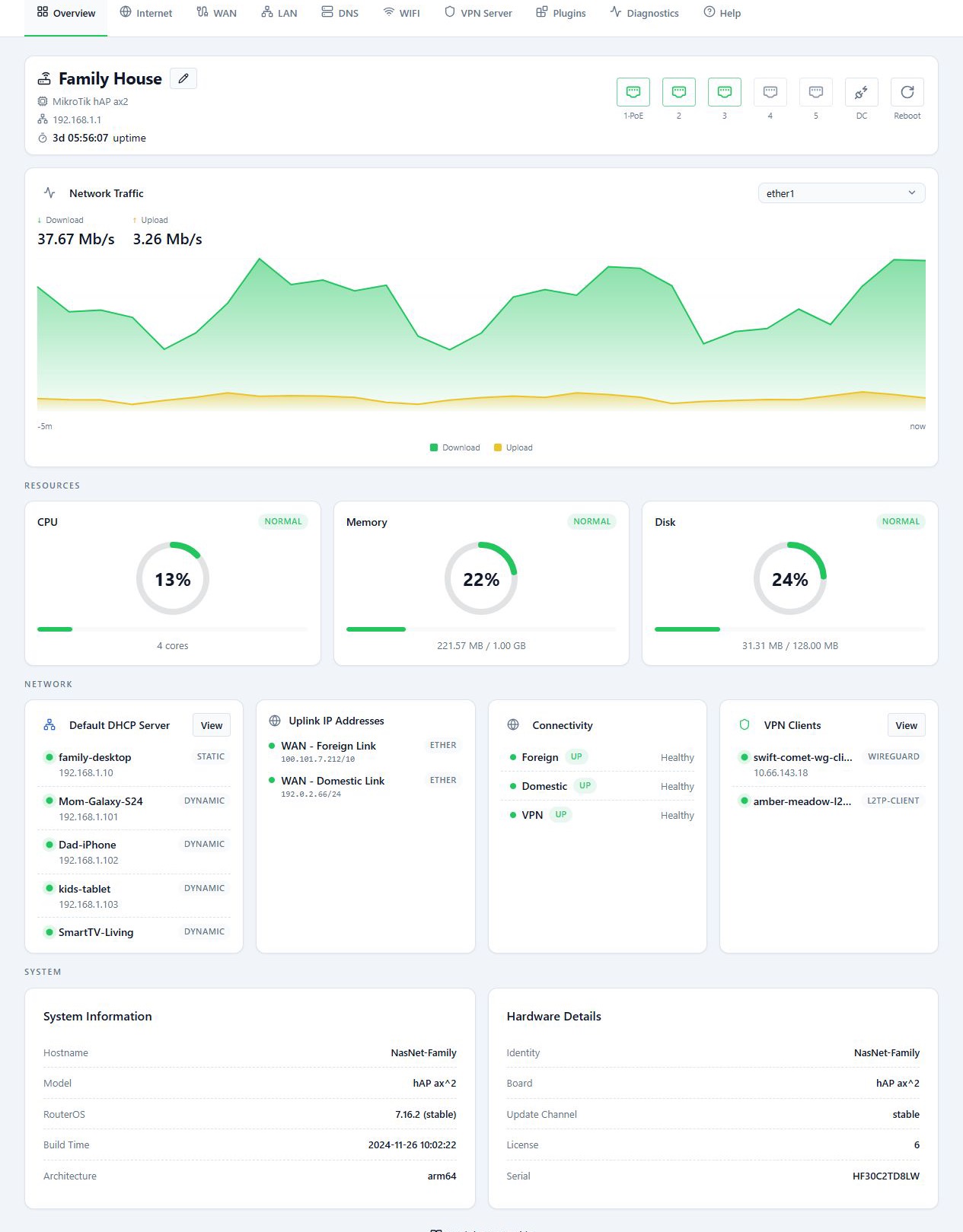
Overview is where you begin checking the network, and it is also the page that opens when the wizard finishes. It shows the router’s main details, port status, traffic and resource use in one view. Most of it refreshes on its own: the live figures every three seconds and the traffic chart every ten.
Before you start
- The router is added to the panel and you are connected to it.
- RouterOS records traffic history separately for each interface. A newly created interface has nothing to plot yet.
Steps
Router details and ports
The top of the page shows the router’s name, model, IP address and how long it has been running (uptime).
- To rename the router, click the edit button beside its name, enter the new name and click Save. This changes the RouterOS identity itself, not just the name shown in your list.
- To check a port, hover over it to see its details.
The port view helps you spot active connections and check each port’s link speed. If a port is not linked at gigabit speed, it turns orange. If the speed is lower than expected, check the cable, the sockets and the port speed of the device on the other end. A lower speed does not always mean a faulty cable.
The Reboot button is also in the device view. A reboot briefly cuts the network and your connection to the panel, so do it when that pause will not cause problems.
Network Traffic
- Pick a port from the list above the Network Traffic chart. By default, the foreign uplink is selected.
- Read the Download and Upload rates for that port over the last few minutes.
This chart shows current traffic. It is not a monthly or weekly usage
report. A unit such as Mb/s is a transfer rate, not the amount of data
used.
Network and connection status
- Check the cards in the Network section.
- To see DHCP or VPN details, click View on that card.
- If a route shows as down, open its tab to look into it.
The Connectivity status is the result of the panel’s reachability check and does not, on its own, tell you why something is down. If resource use stays high for a long time, include it with a Diagnostics report when you look into the problem.
Reference
Resources
| Card | What it shows |
|---|---|
| CPU | Processor use and core count. The badge reads Normal, High from 65% and Critical from 85%. |
| Memory | RAM used and total capacity, with the same thresholds. |
| Disk | Storage used and total capacity, with the same thresholds. |
Network
| Card | What it shows |
|---|---|
| Default DHCP Server | Devices and addresses registered in DHCP. Use View for details. |
| Uplink IP Addresses | The addresses the MikroTik received on the domestic and foreign internet links. |
| Connectivity | Reachability of the Domestic, Foreign and VPN routes. |
| VPN Clients | The router’s outbound VPNs. This is not the list of users connected to the VPN Server. |
System
| Card | Fields |
|---|---|
| System Information | Hostname, Model, RouterOS version, Build Time and Architecture. |
| Hardware Details | Identity, Board, Update Channel, License and Serial. |
Troubleshooting
“No traffic data collected for this interface yet” appears. RouterOS has not recorded chart data for that interface yet. Pick another interface, or wait a little.
The page stays in its loading state. The panel has not received the system details from the router yet. Check that the router is reachable and that you are still connected to it.
After a reboot the panel goes back to the router list. That is expected. The panel returns to its home page while the router restarts.