
WiFi
The wizard's fourth step, where you set the router's WiFi name and password and optionally split the bands.
Overview
On the Wireless settings page you set up the wireless network your phones, laptops and other devices will join. The network name and password are previewed in a card beside the form.
On routers without wireless hardware this step is disabled and the wizard carries on without WiFi.
Before you start
- Pick a network name. The form warns about words such as
starlink,VPNandIranin the name. - Pick a password of 8 to 63 characters, or have the generator make one.
Steps
- If you need WiFi, leave Wi-Fi enabled on.
- Enter the network name in Network name (SSID).
- Set the network password in Password.
- If you like, use Generate SSID and Generate Wi-Fi password for a random name and password.
- If you want the 2.4 GHz and 5 GHz networks to have separate names, turn on Split across bands.
- Check the network name preview and press Next.
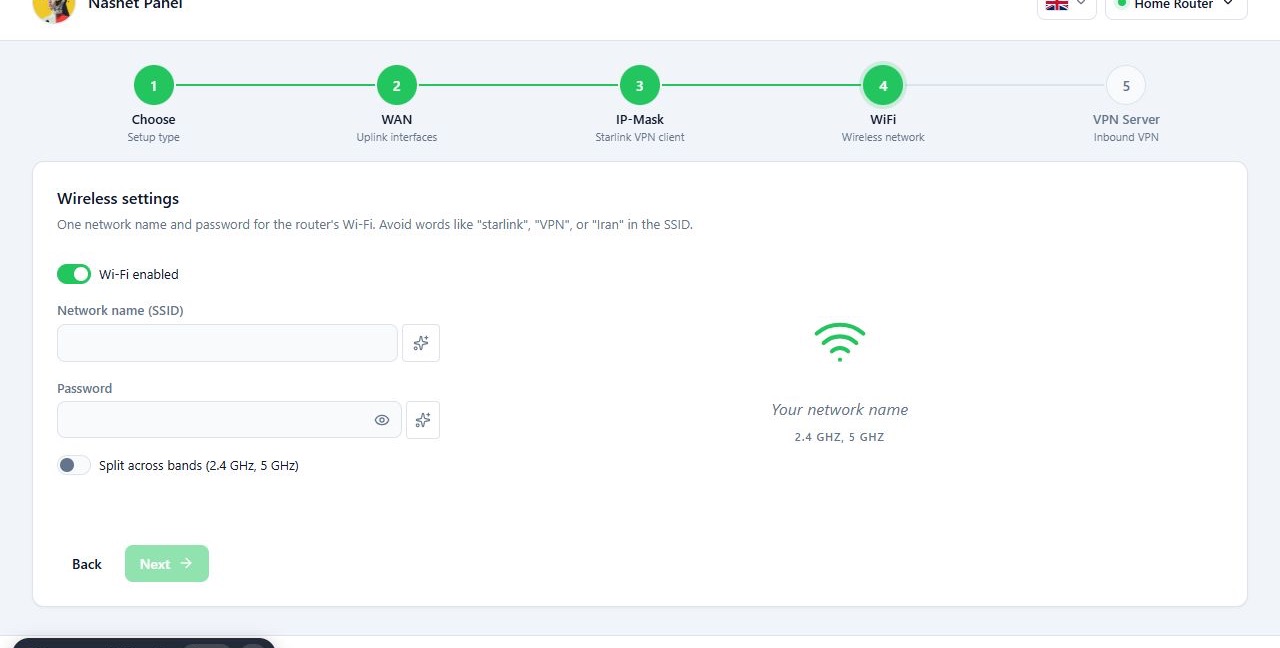
If you do not need WiFi, turn Wi-Fi enabled off. You will then need another way in, such as a network cable, to reach the panel later.
Reference
| Field | What it does | Default |
|---|---|---|
| Wi-Fi enabled | Turns the router’s WiFi on or off. Forced off on routers without wireless hardware. | on |
| Network name (SSID) | The wireless network name. Required. | empty |
| Password | The network password, 8 to 63 characters. | empty |
| Split across bands | Gives each band its own name with a band suffix such as -2.4G or -5G. Only shown on multi-band routers. |
off |
Troubleshooting
The name or password is not accepted. Read the message under the field. Pick a name that meets the form’s rules and a password of 8 to 63 characters.
This router has no Wi-Fi hardware, so wireless options are unavailable.
The panel found no wireless interfaces on the router. Press Next.